Interactive demo · Shoe store pickup
Order at the kiosk. Pick up from a numbered shelf.
Each screen is its own page for its own device, running as one system. Something you do on one shows up on the others right away: the kiosk order lands in the back room, the shelf number lights up the big screen and texts the customer.
Connecting…1Customer ordersKiosk
2Back room fills itScans each box, picks a shelf
3Customer is toldText or auto-call: “ready on shelf N”
4Big screen shows itOrder number + shelf
5Customer replies 1Manager sees it collected
The screens
KKioskTablet. Customer picks shoes by child and size (55 styles, 20 low on stock), enters a phone number, gets an order number.Open on a tablet →
BBack roomSmartphone. Open scanner uses the phone camera with a laser frame and a live readout. Scan each box, then the shelf tag.Open on a smartphone →
MManagerComputer. Full admin: open, edit, cancel or delete any order, bump its status, move shelves, run the demo traffic.Open on a computer →
TVBig screenComputer or TV, light theme. Ready orders with their shelf number, and what is being prepared.Open on a monitor →
PCustomer phoneAny phone. The text and the automatic call a customer gets, with Reply 1 and Press 1.Open on any phone →
TOrder pageWhat the customer opens from their text: progress, shelf number, a pickup QR, an "I'm here" button, and substitution offers.Open on any phone →
LLabelsPrint an order label with a pickup QR, or the 50 shelf tags the back room scans.Open and print →
Demo controlsThe store runs on the real clock and makes up its own orders (started, 3 minutes to fill, picked up or left). Your own orders are never touched.
Try it in five minutes
- Kiosk: tap Start order, use the sample phone number, pick a few shoes, tap Place order.
- Back room: pick a name, open the new order, tap Start filling.
- Scan: tap Scan box. On a phone this opens the camera. Point it at a code from the scan sheets below, shown on another screen or printed. On a computer, use the Practice boxes instead.
- Shelf: when all boxes match, scan a shelf tag (or tap a shelf number). The order is now ready.
- Watch: the big screen shows the shelf, the phone page shows the text, and the manager sees it move.
- Customer phone: tap Reply 1 and the order moves to Collected and the shelf frees up.
Install each one as an app
Every page is a web app. Open it on its own device, then add it to the home screen. It opens full screen with no browser bar, with its own icon.
- Tablet kiosk and phones (iPhone, iPad): open the page in Safari, tap Share, then Add to Home Screen.
- Android tablets and phones: open the page in Chrome, tap the menu, then Install app (or Add to Home screen).
- Computers (manager and big screen): open the page in Chrome or Edge and click the install icon at the right of the address bar, or menu, then Install. The big screen then opens as its own full-screen window.
Scan sheets: codes for every shoe
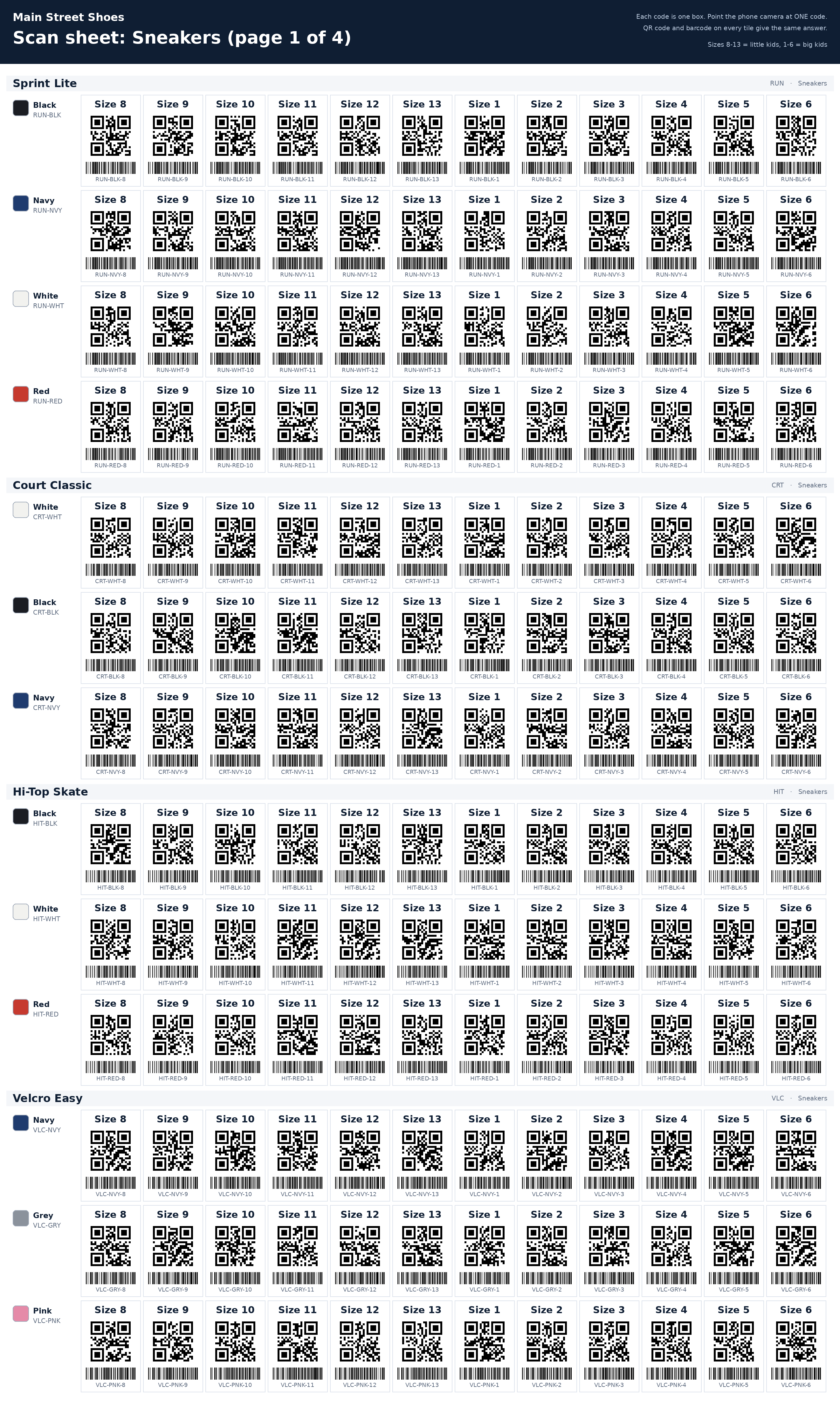 Sneakers 1
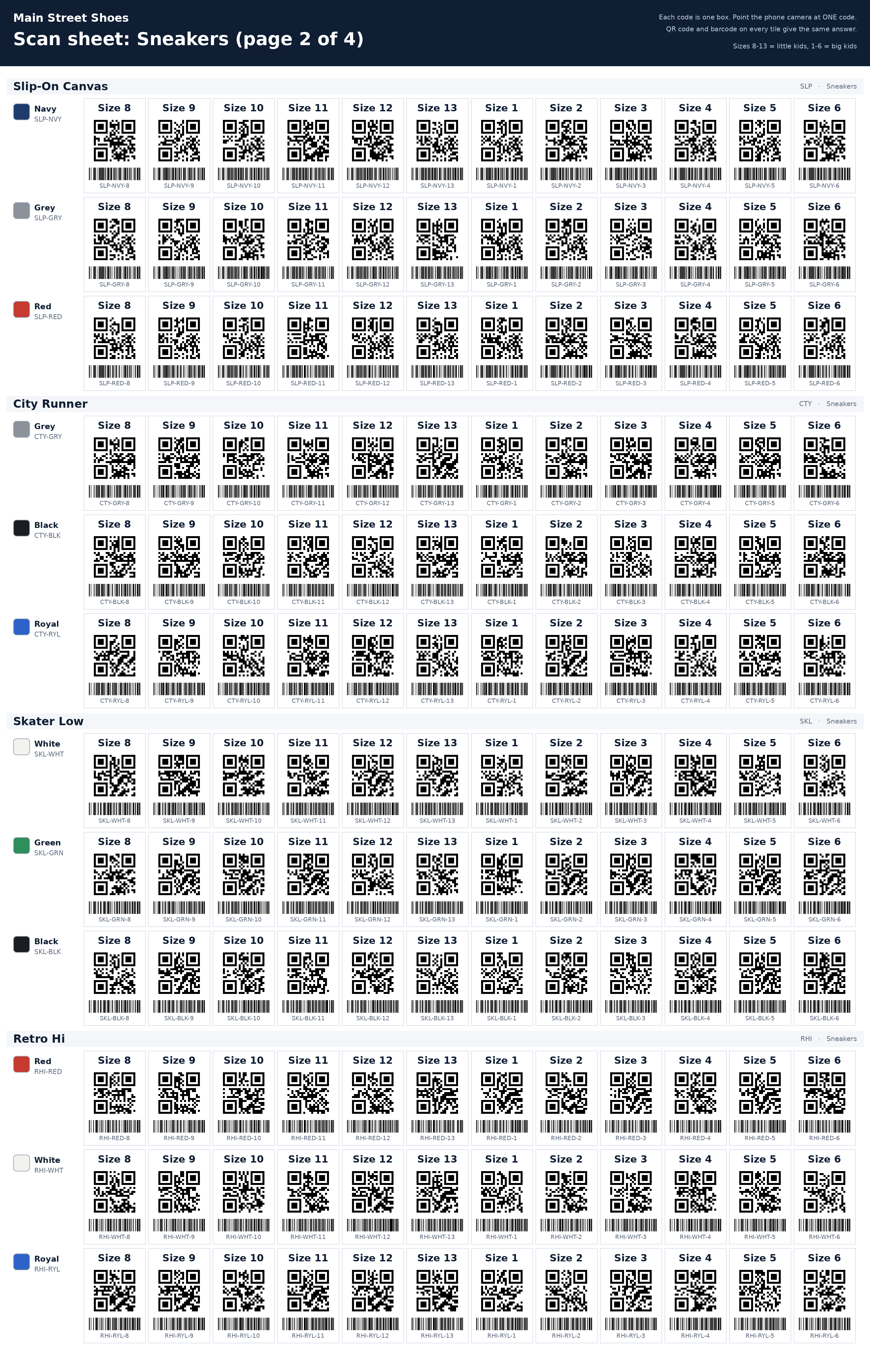 Sneakers 2
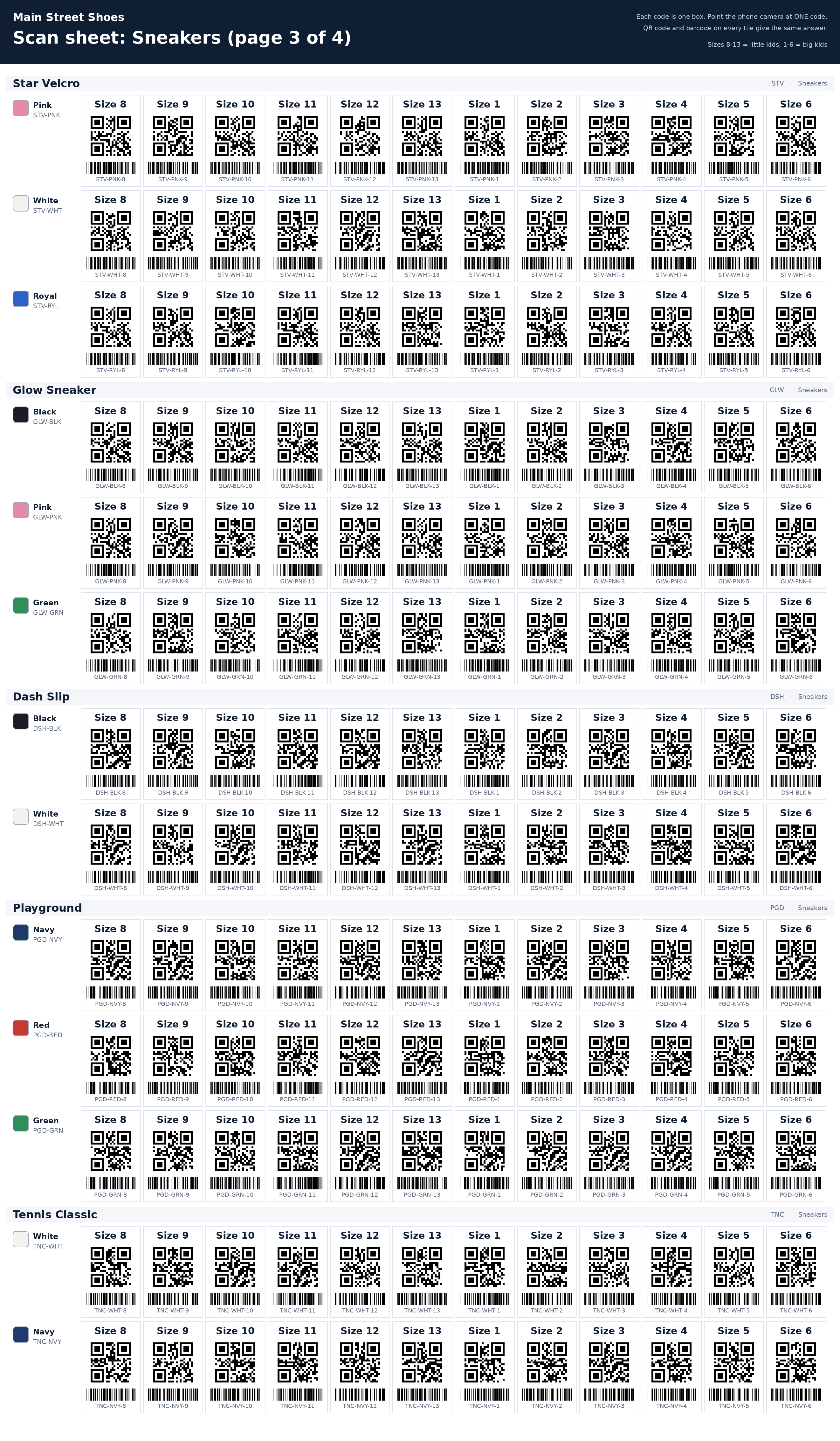 Sneakers 3
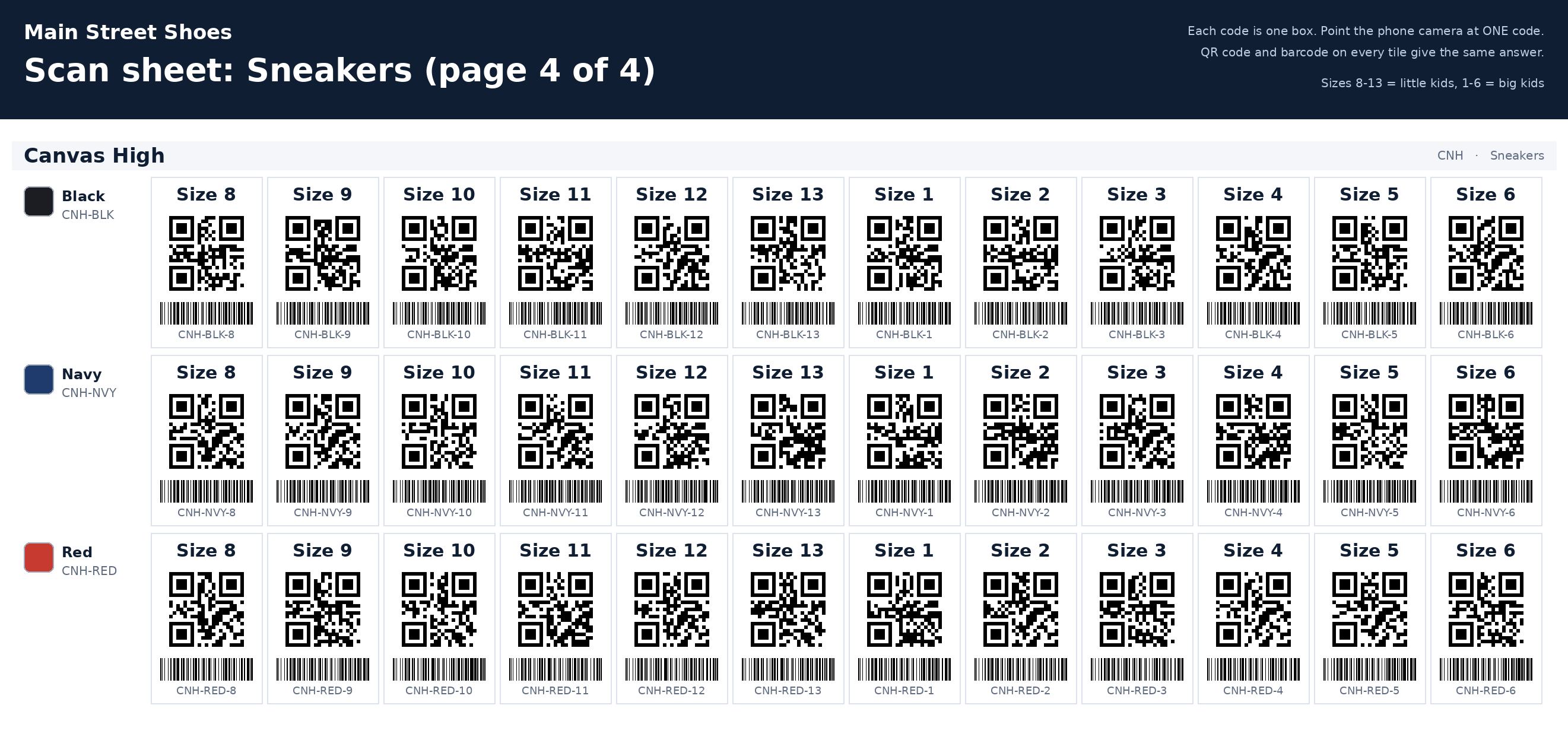 Sneakers 4
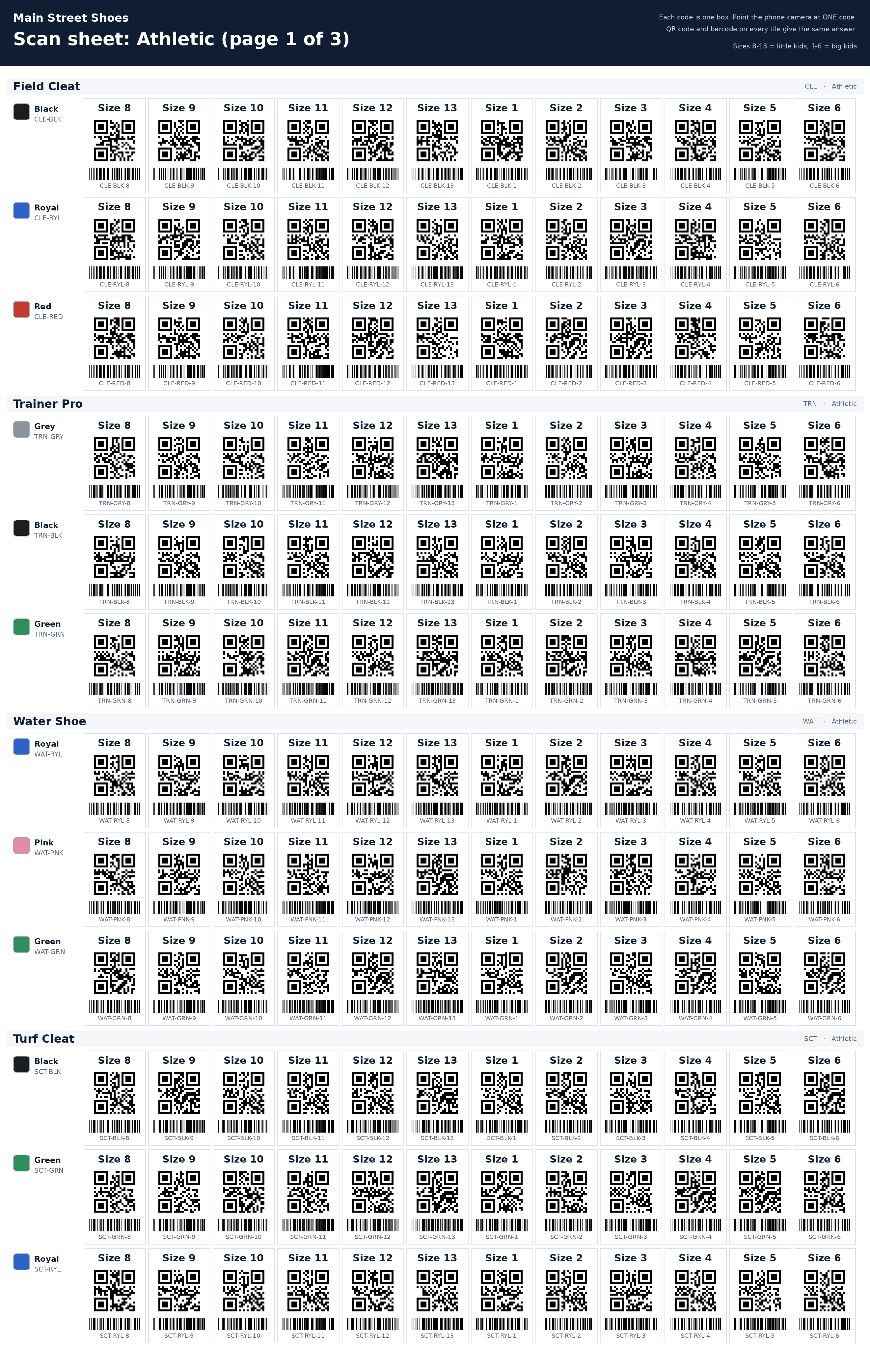 Athletic 1
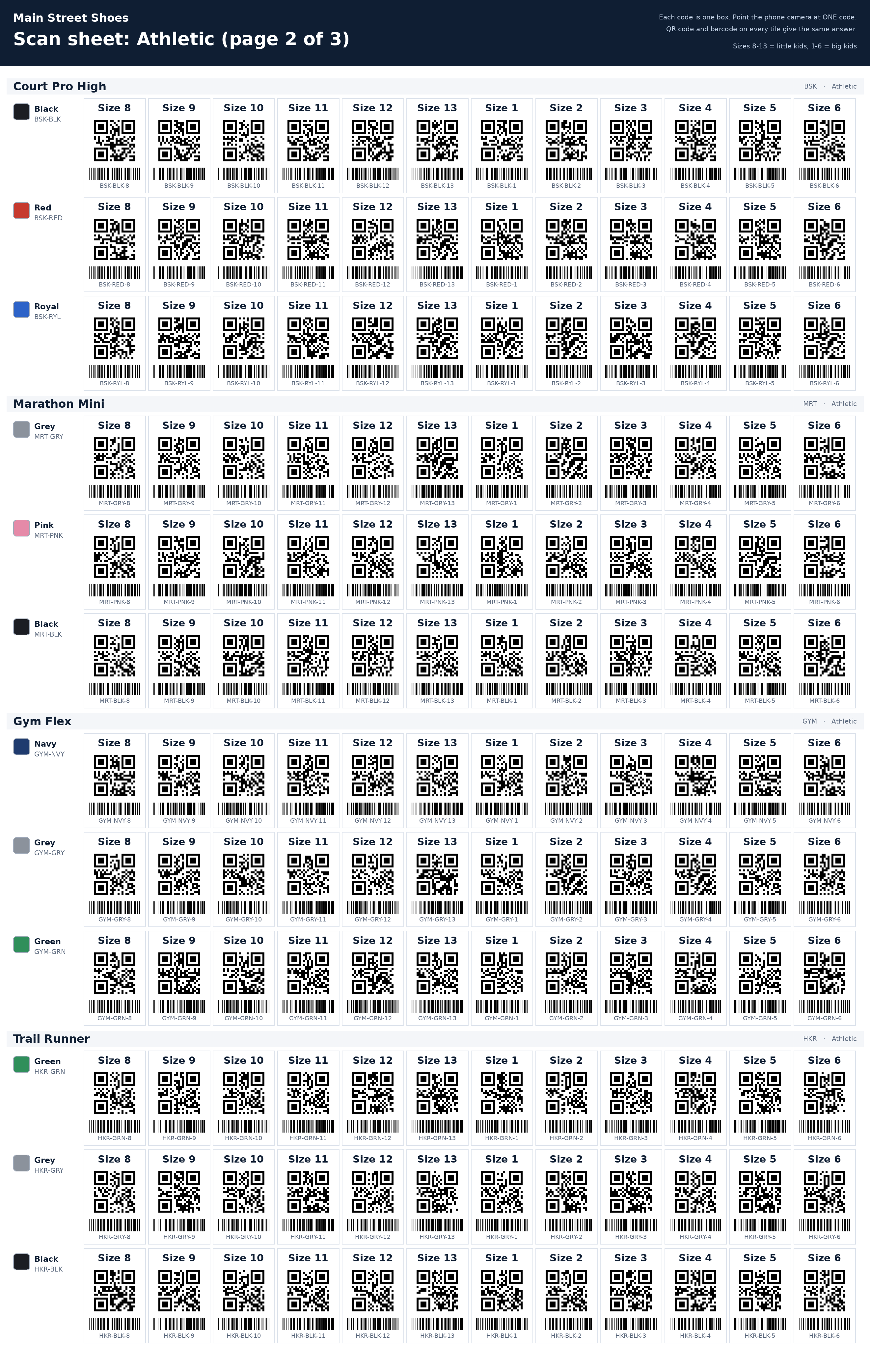 Athletic 2
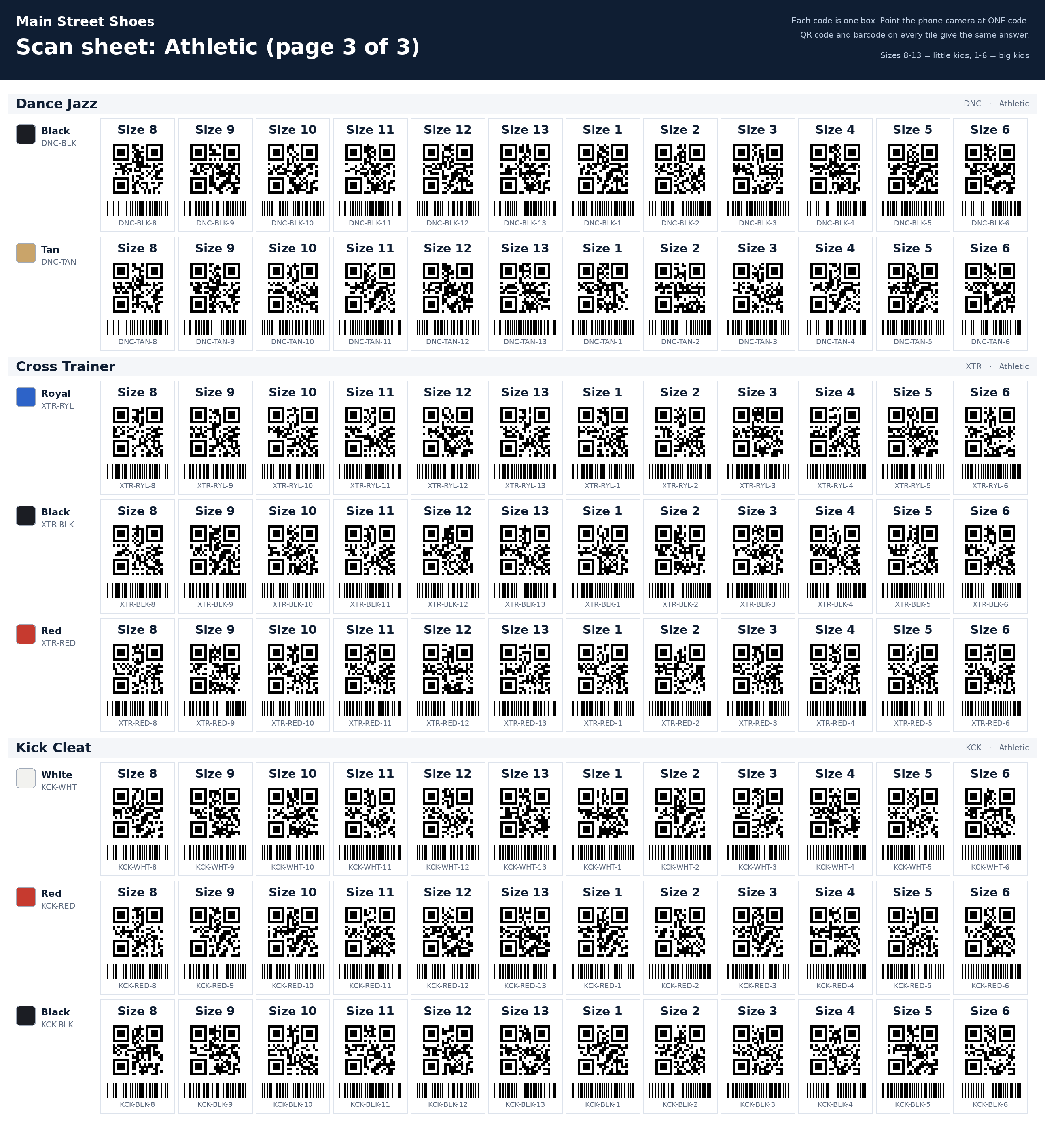 Athletic 3
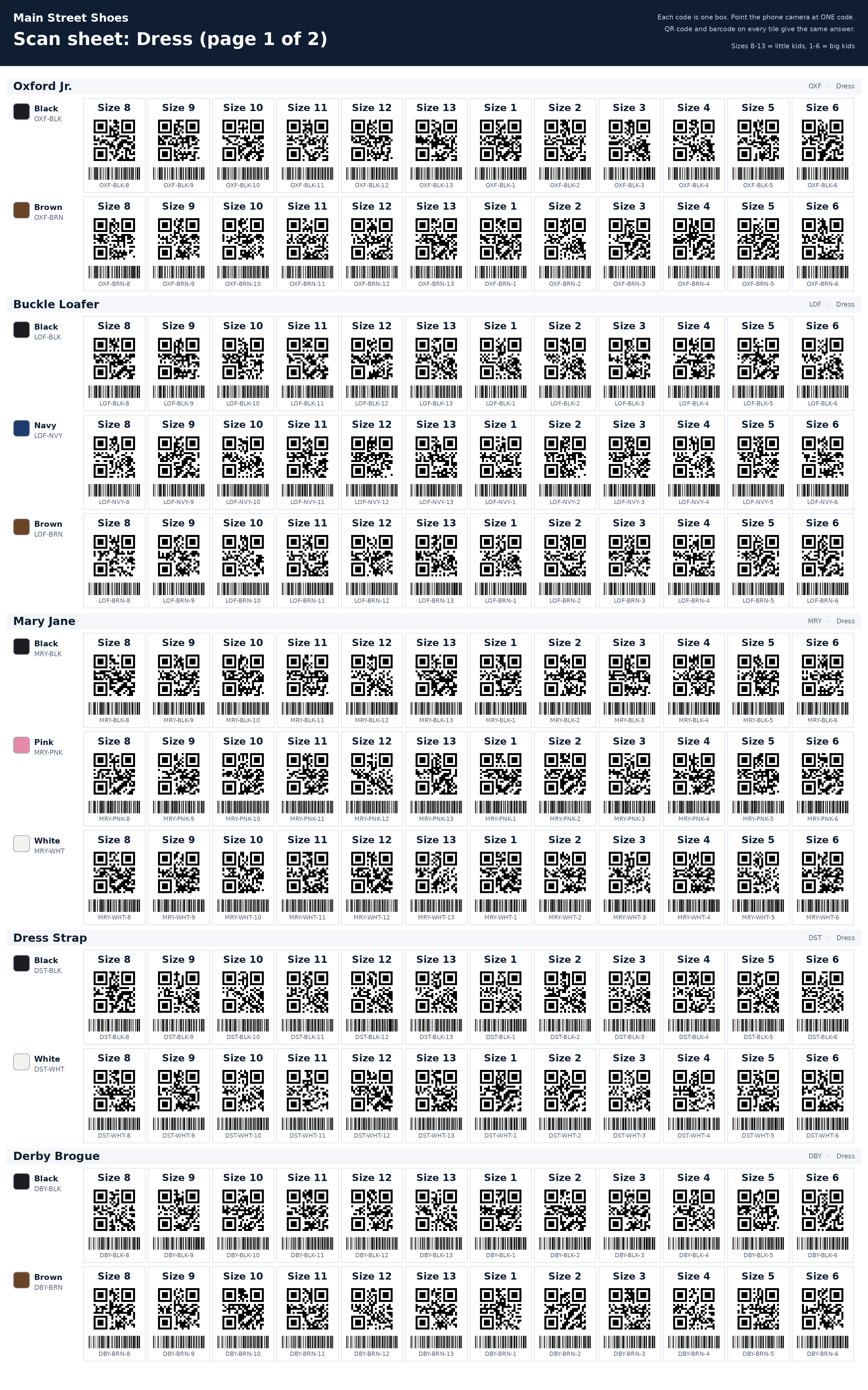 Dress 1
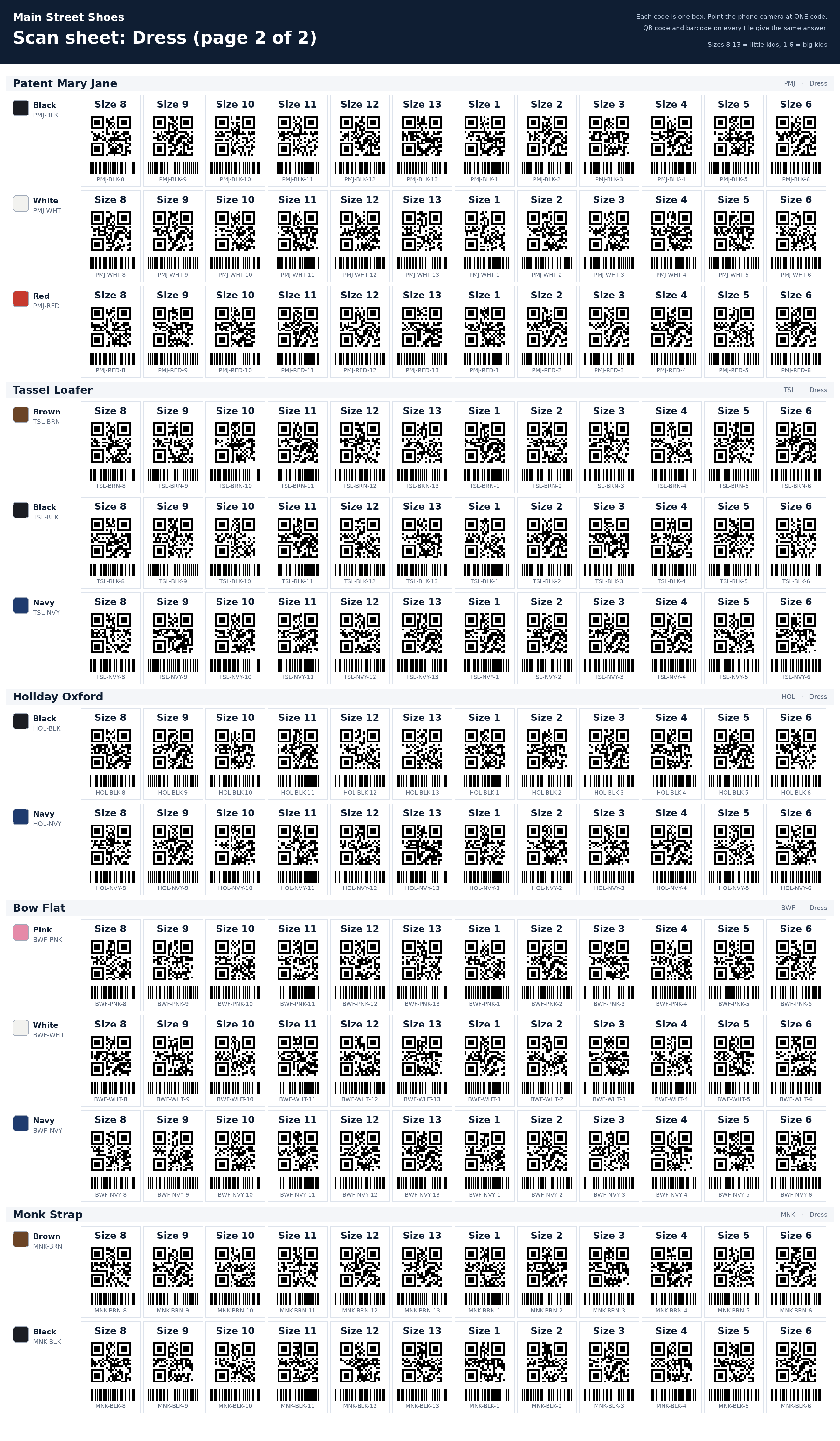 Dress 2
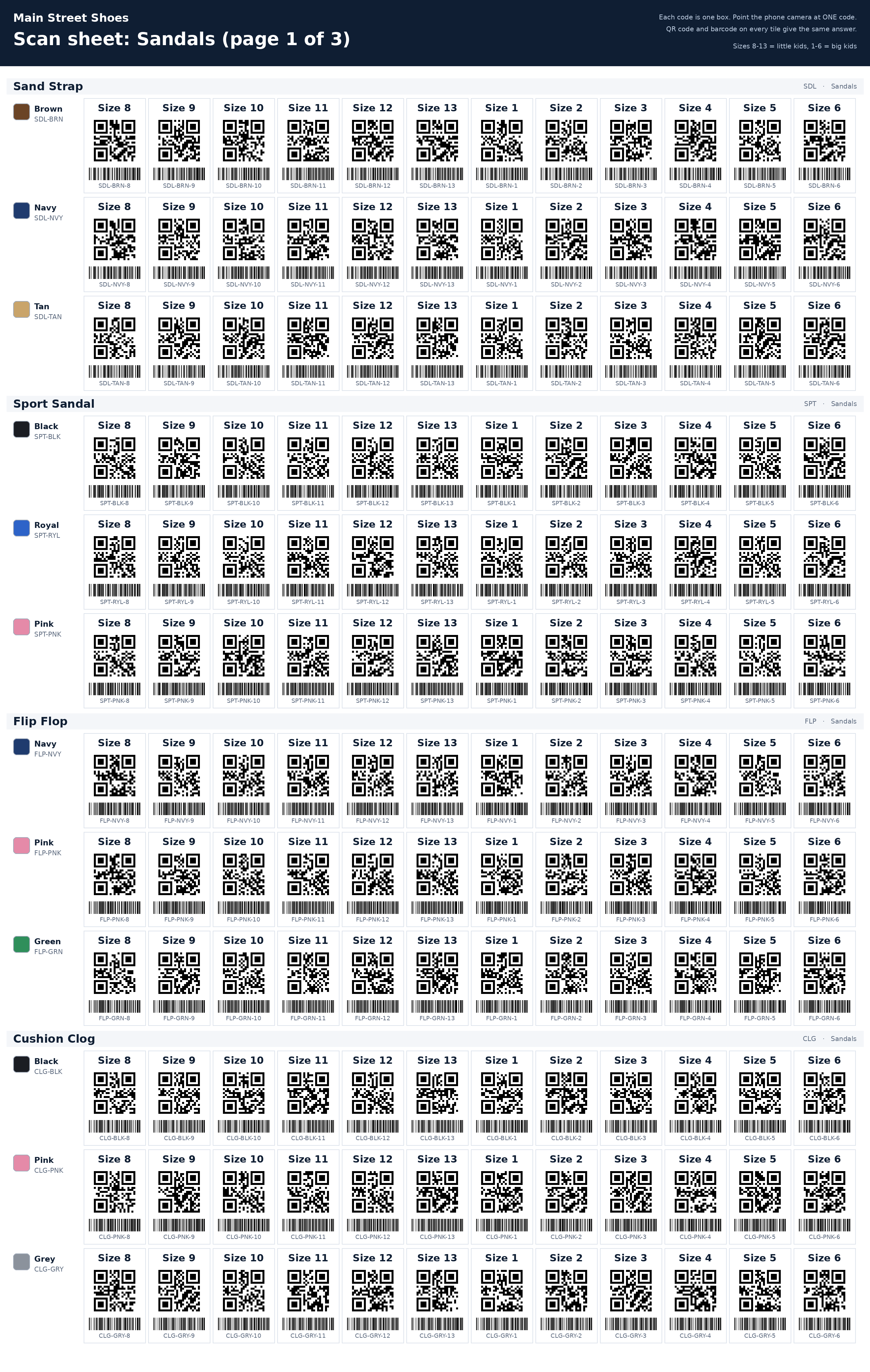 Sandals 1
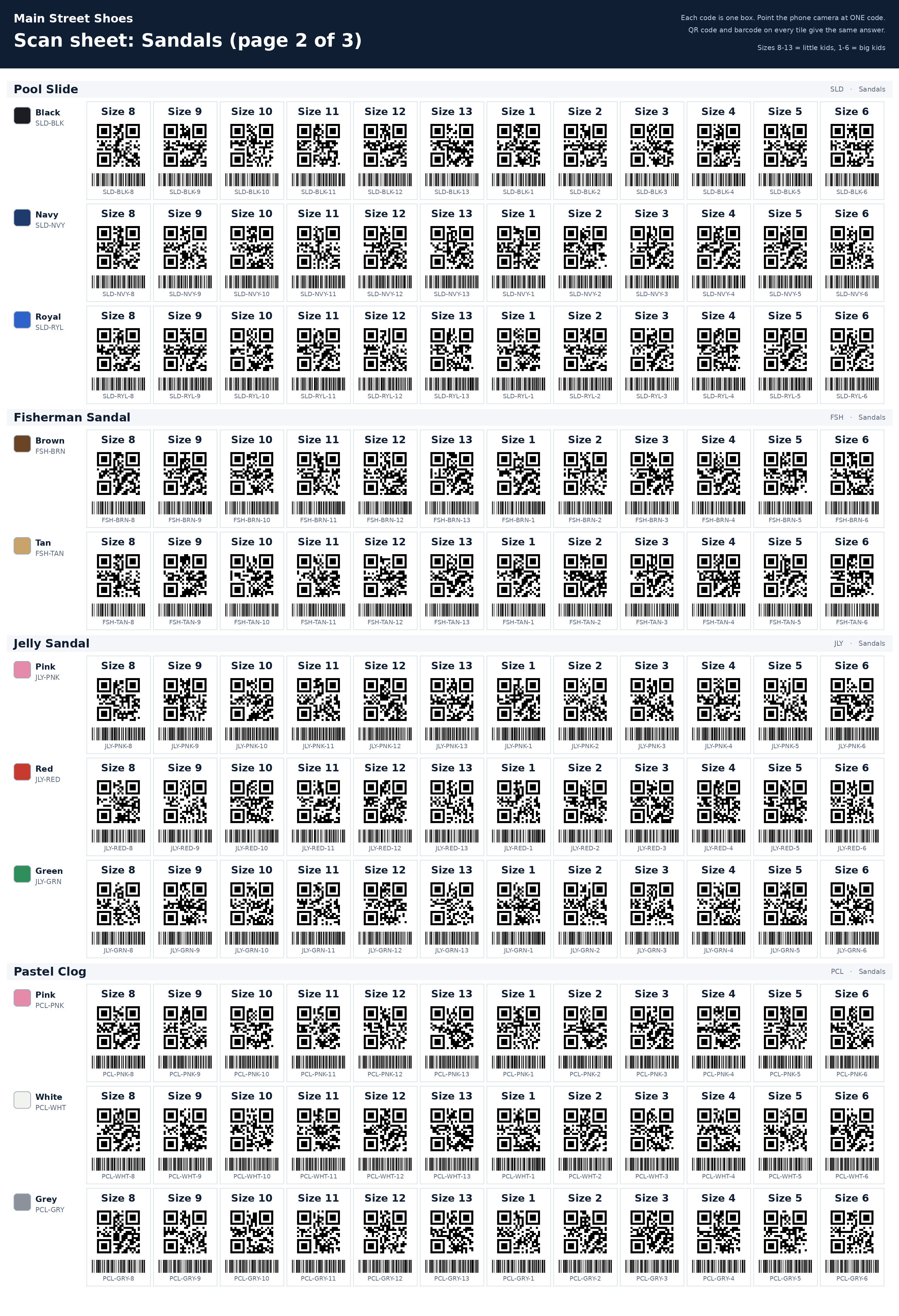 Sandals 2
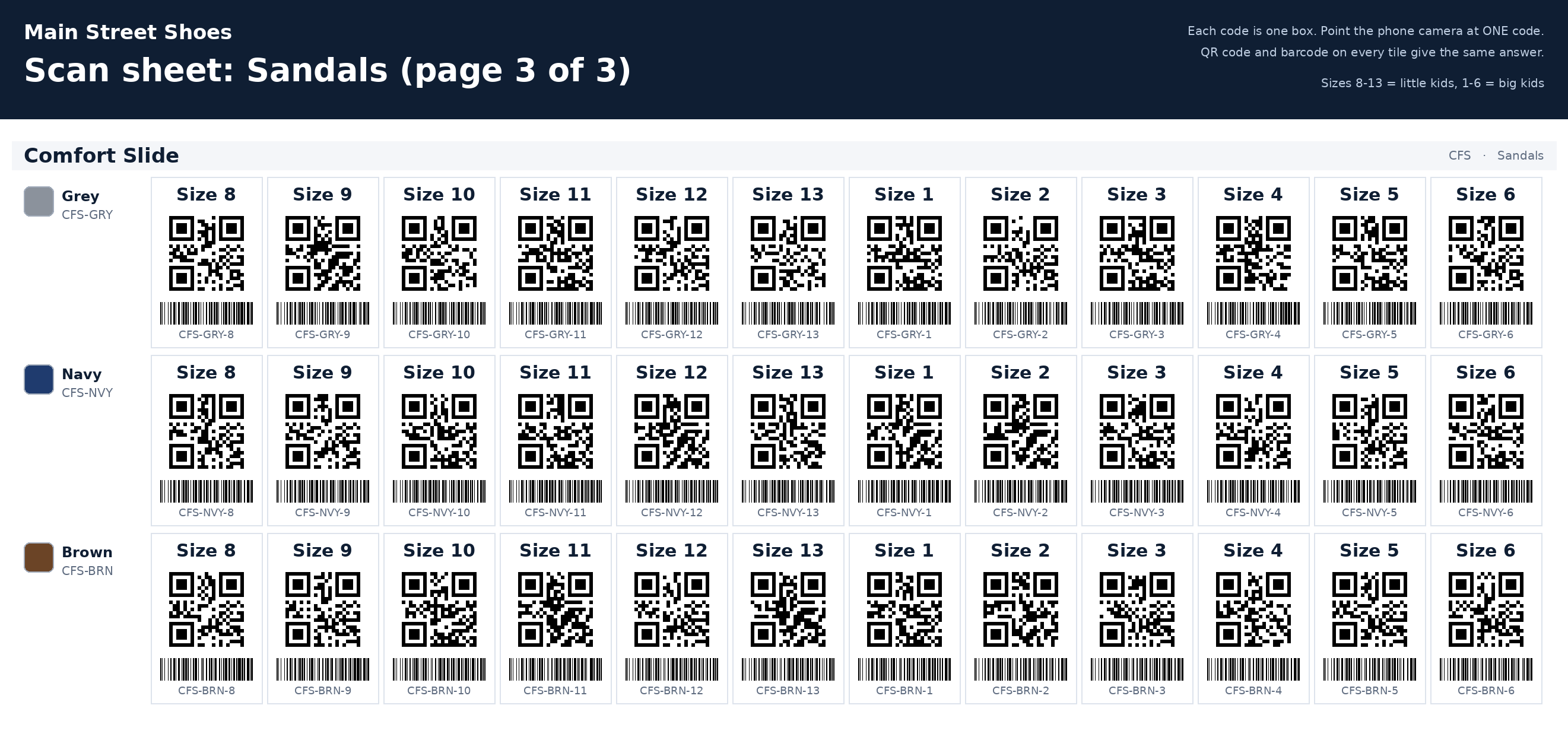 Sandals 3
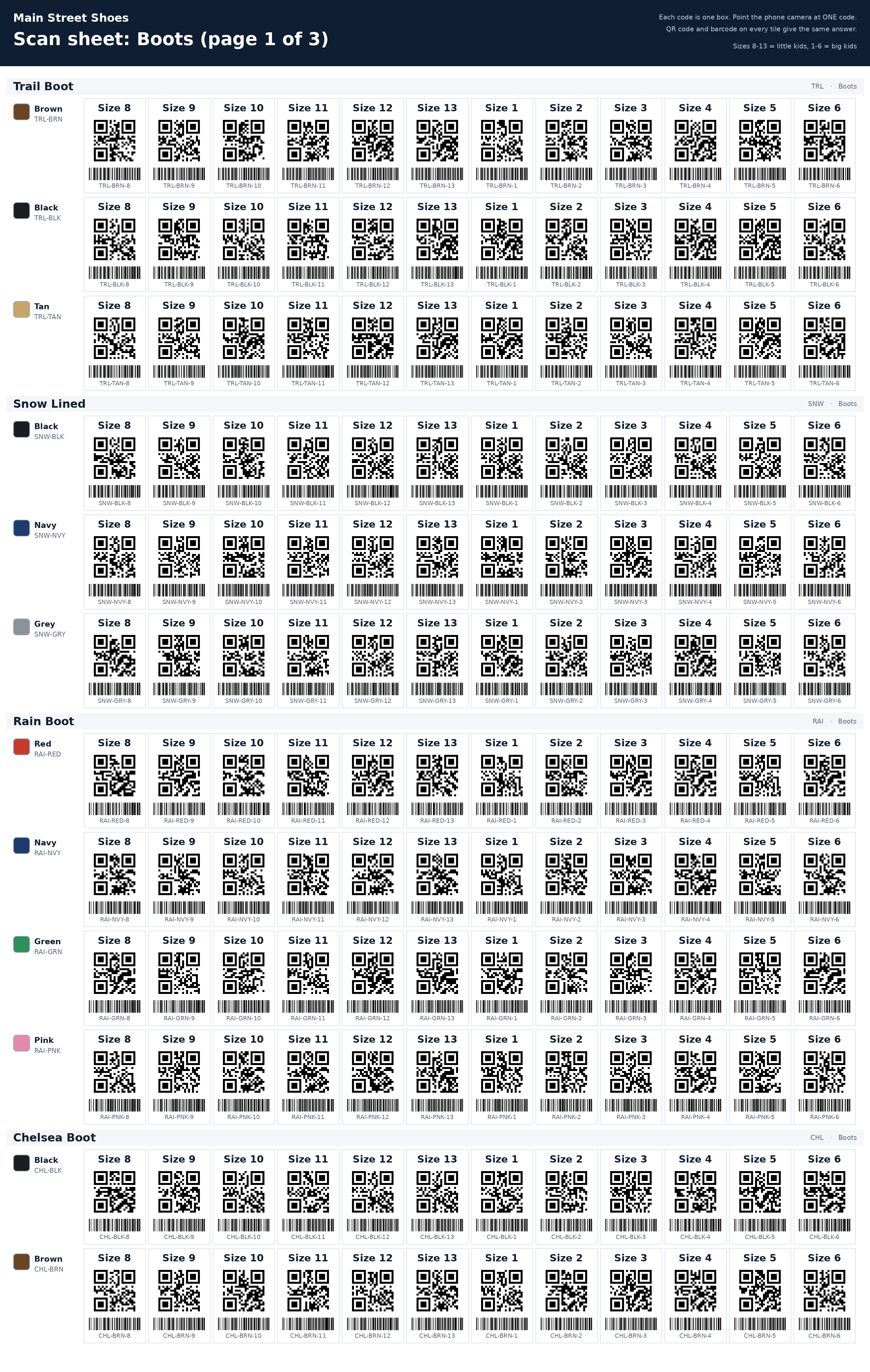 Boots 1
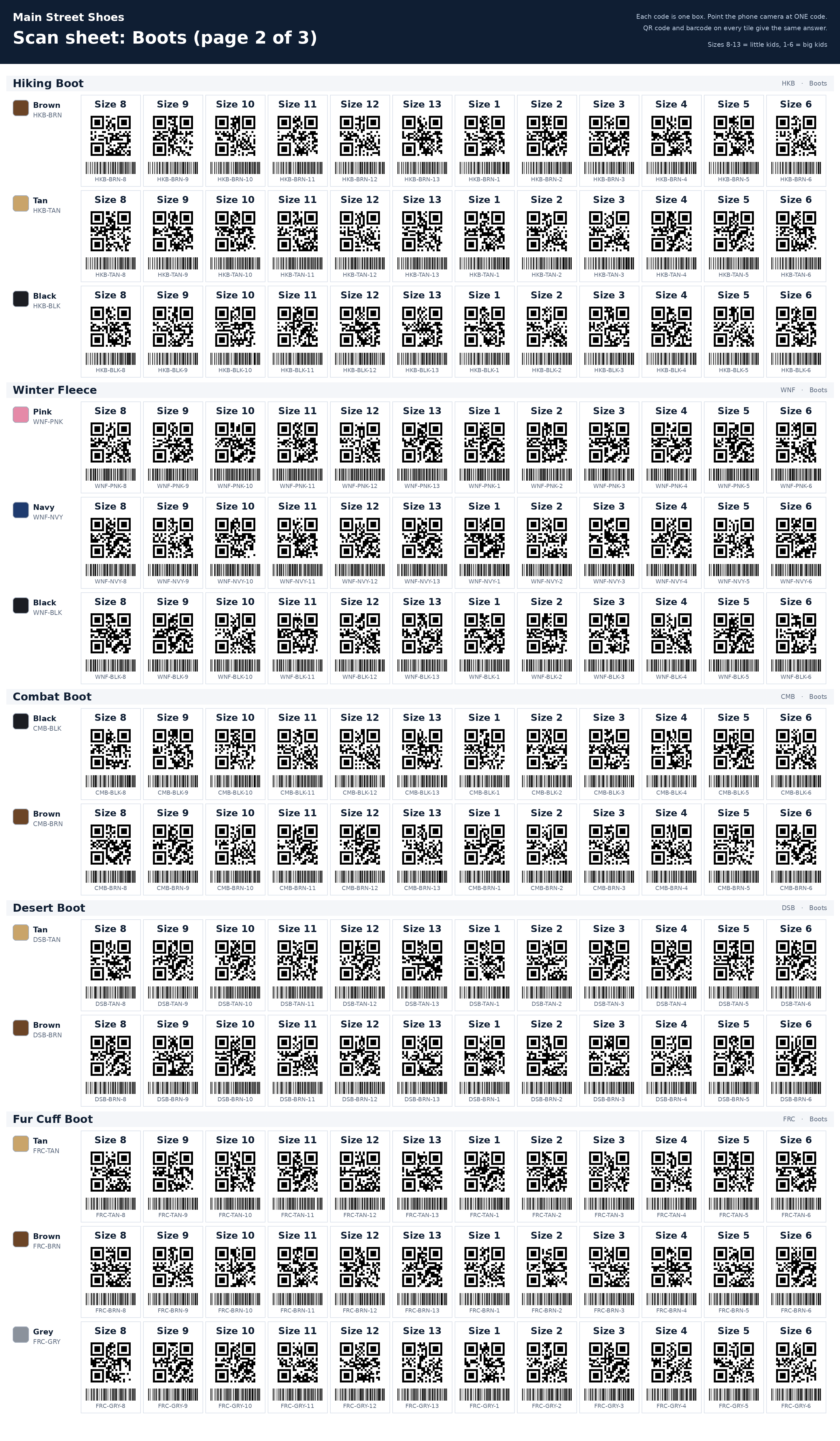 Boots 2
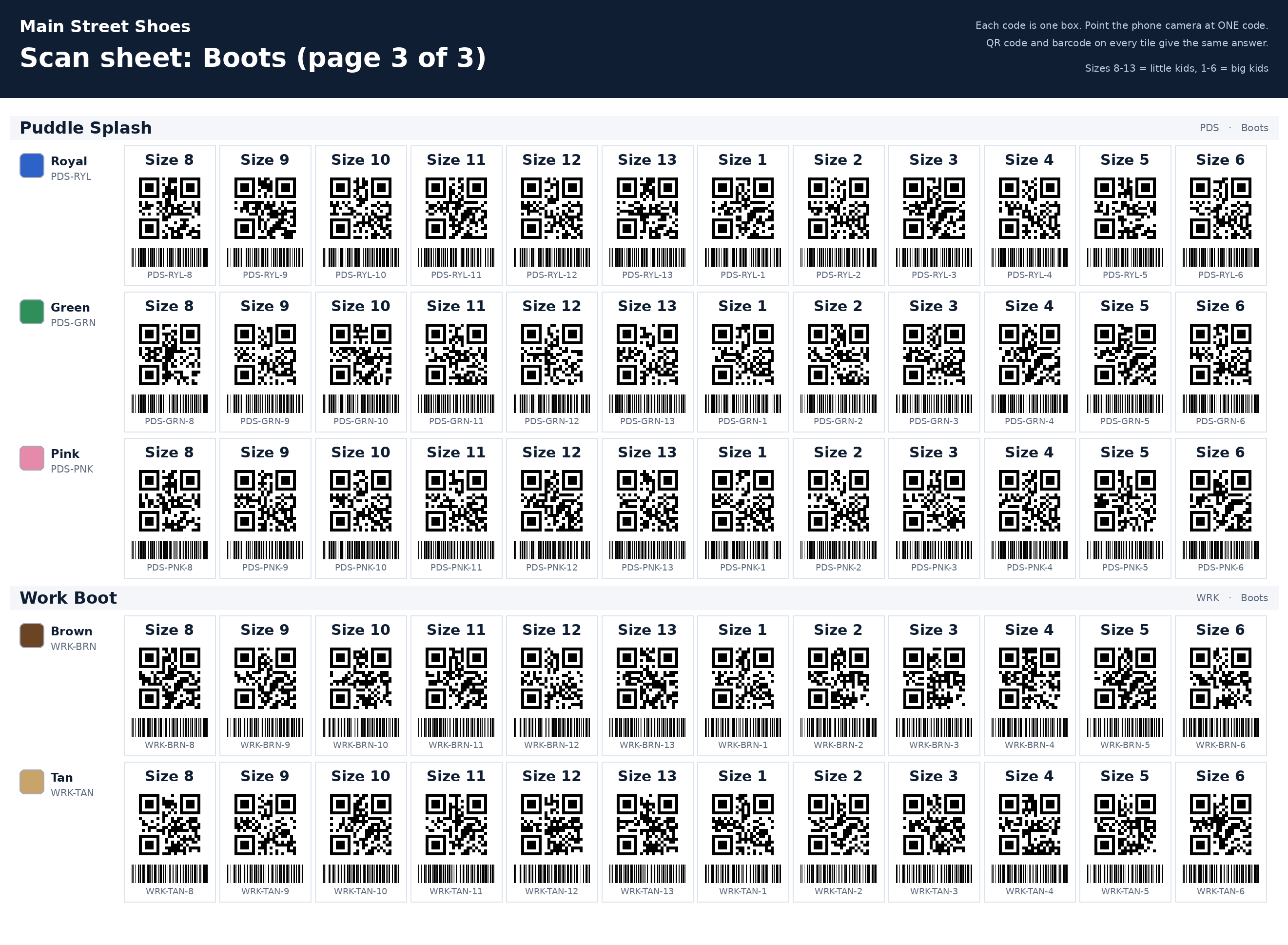 Boots 3
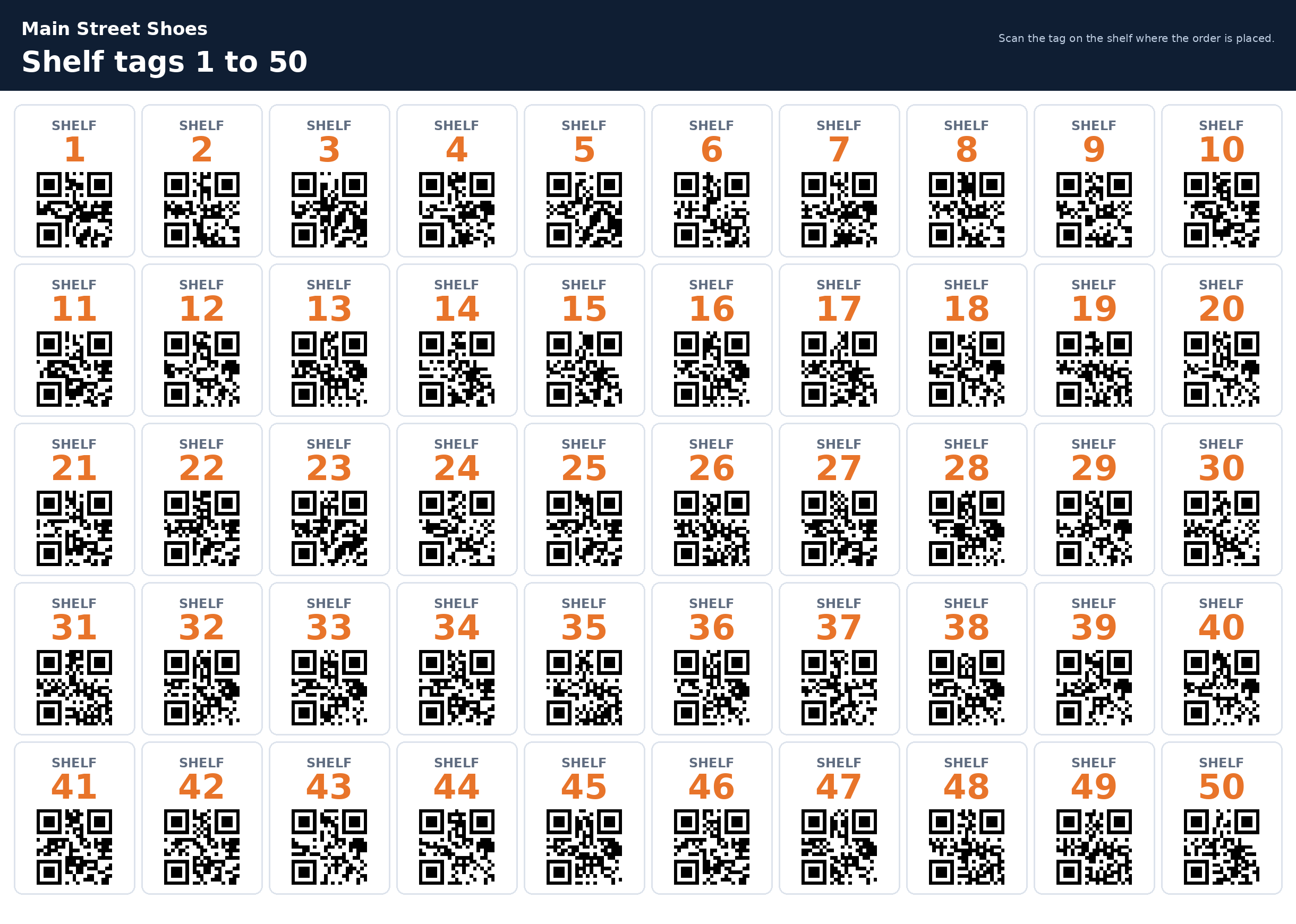 Shelf tags 1–50
Each code is both a QR code and a barcode for the same shoe, size and color. Frame just one code about 20 to 30 cm from the phone.